
Choose your apps
Install a client on the device in your hands and a host on the computer you want to use. The host computer needs to be awake and the host app running.
| App | Install on | What it does |
|---|---|---|
| Vey | iPhone, iPad or Android 8.0+ | Control a remote PC, with touch, pointer, keyboard, and SSH tools. |
| Vey Desktop | Windows or Mac | Connect from one computer to another. PC pairing and Desktop streaming are the first scope; SSH is not available here yet. |
| Vey Host | The PC you want to access | Send the screen and audio, and receive input from the client. macOS and Windows builds are being prepared; Linux needs separate validation. |
Mobile App Store and Google Play releases are being prepared; final prices and dates are not announced. Desktop and Host will be free. There are no public app downloads yet.
AvailabilityConnect a PC
Make the first connection on the same local network. SSH is separate and does not use the PC pairing PIN.
Development app captures: mobile setup is shown in iPad Simulator, and Host setup uses example state. The Desktop session is from a real iPad. Addresses and PINs are examples. Select an image to view it full size.
Install Vey Host on the remote PC.
On a Mac, open the DMG and drag VeyHost into Applications, then open the installed app. On Windows, run the Host EXE installer. The Mac example below is from the development package.
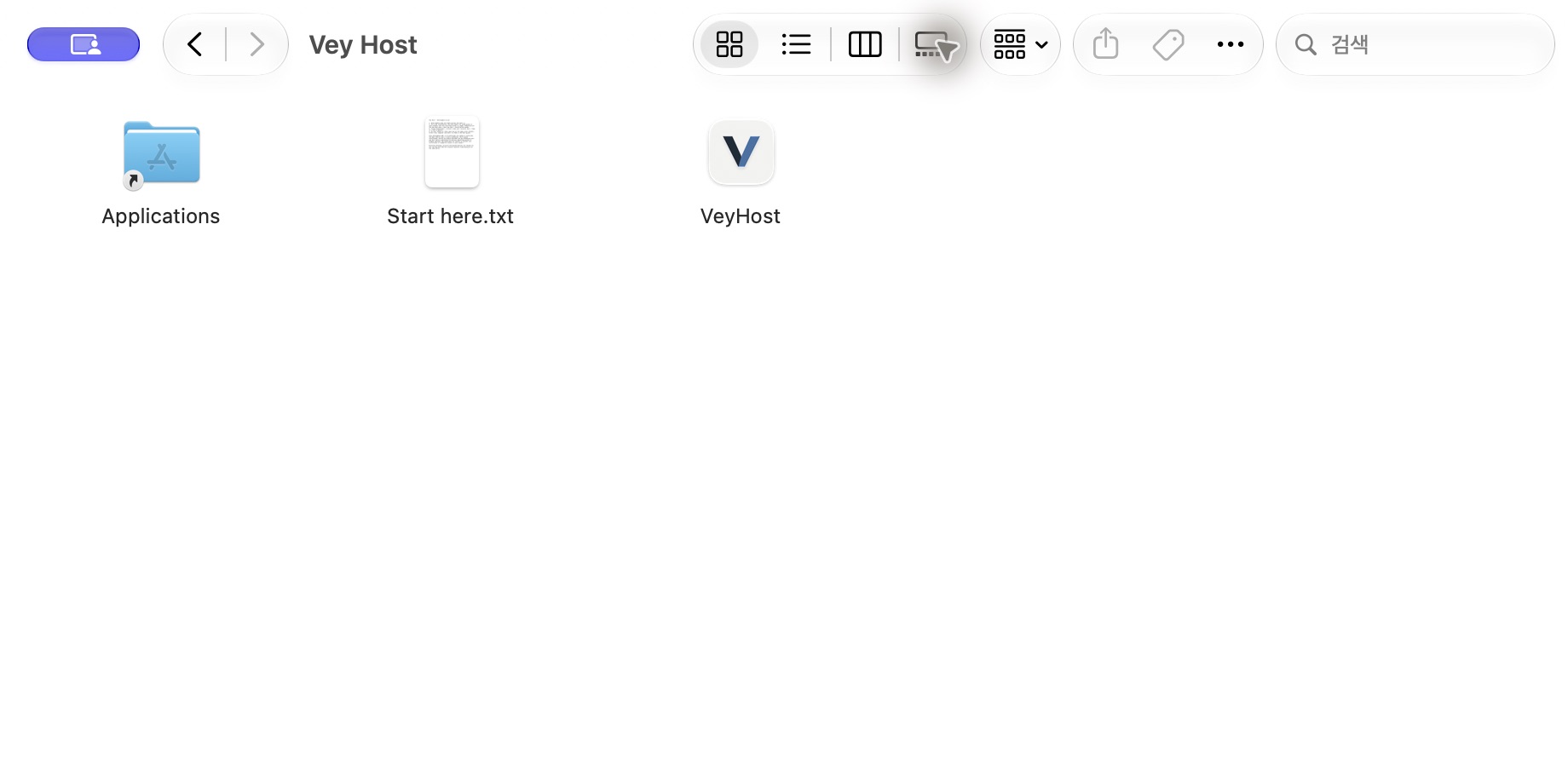
On the Mac · Drag VeyHost to Applications, then open the installed app.View full size Set up Host on that PC.
On a Mac, allow both screen recording and Accessibility. Create the Host management login and save the recovery key privately. This login is separate from your Apple or Windows account and from the pairing PIN.
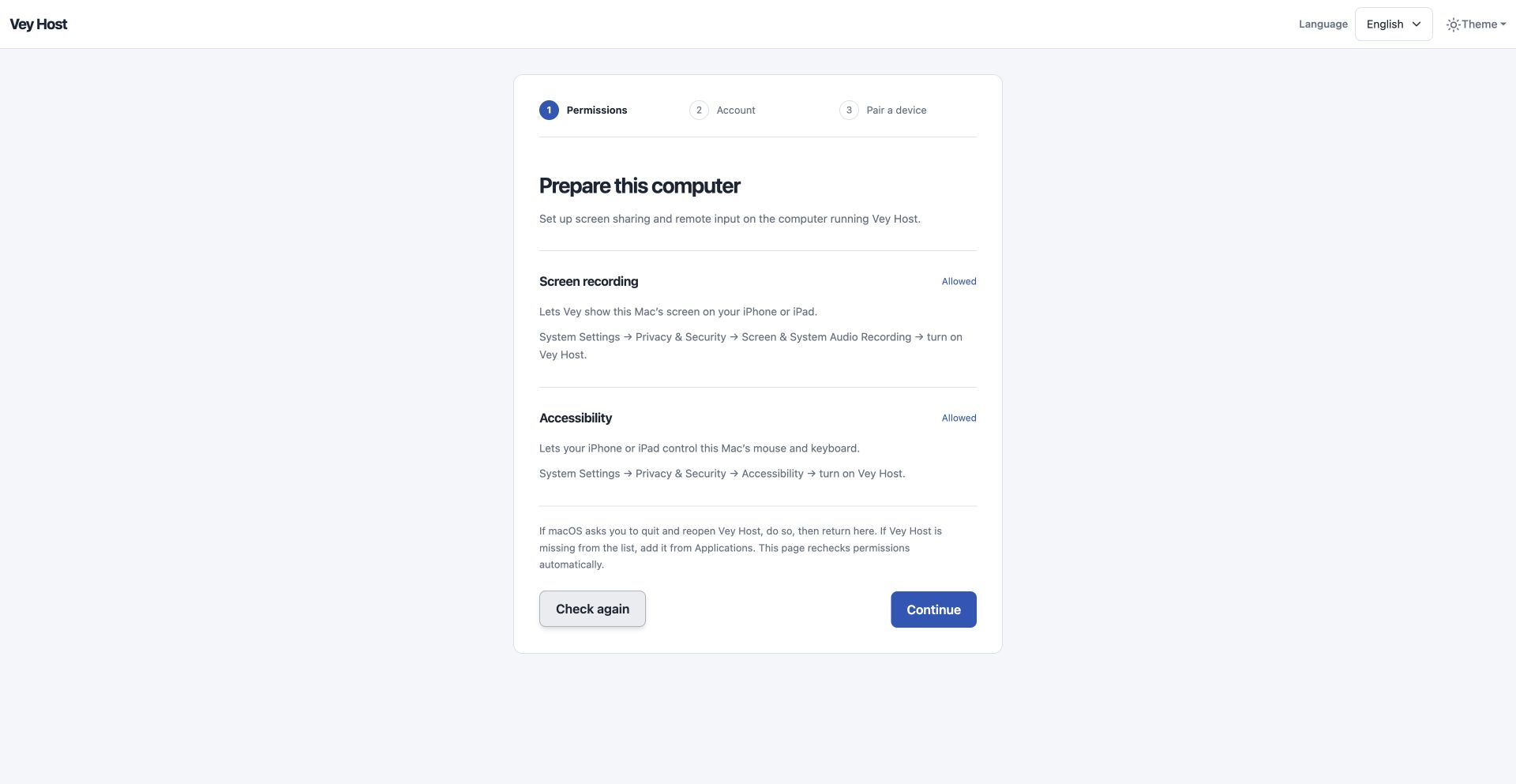
On the Mac · Both Screen recording and Accessibility need permission.View full size 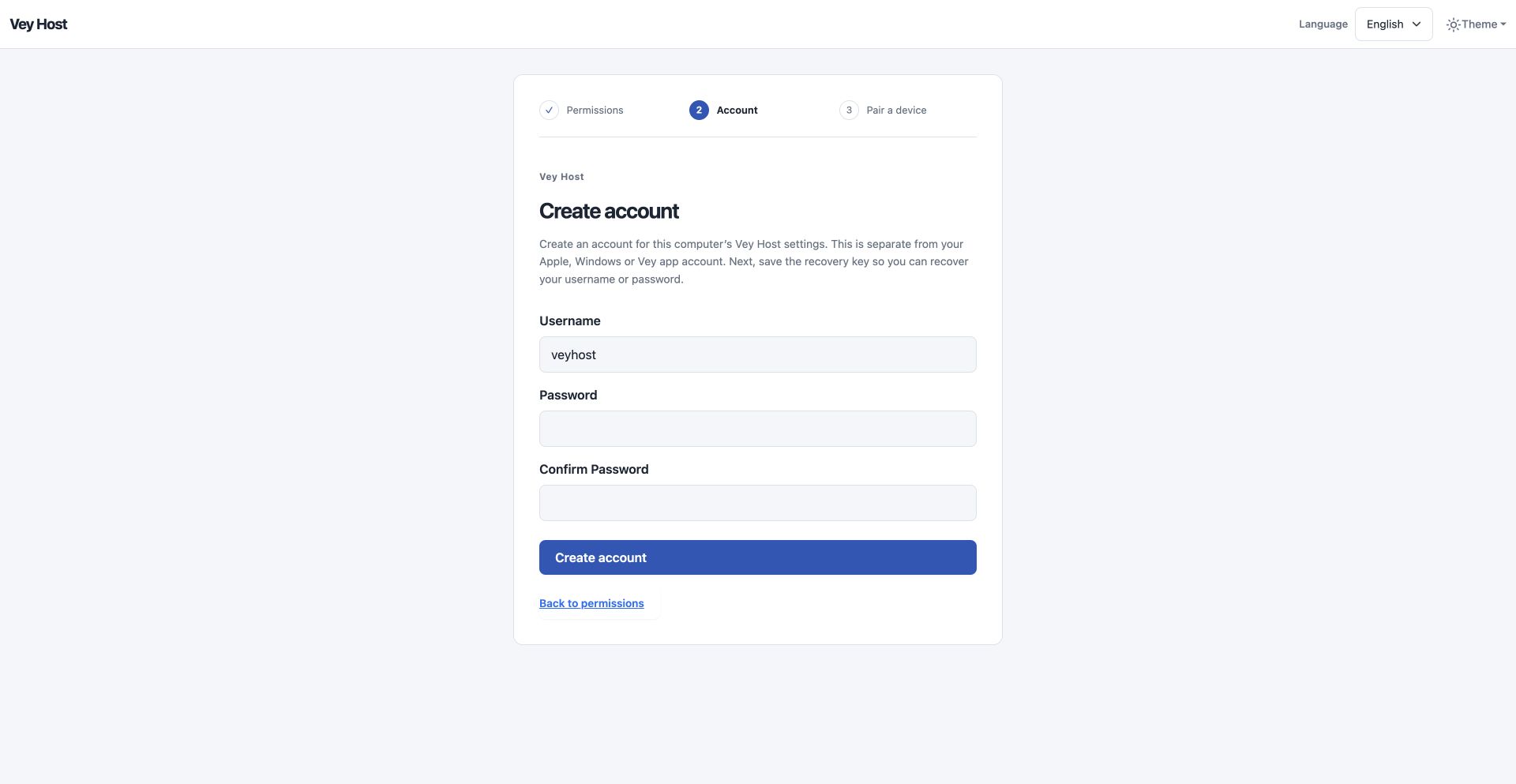
On the PC · Create a login for this Host. The example has empty password fields.View full size Add the computer in Vey.
Allow local network access when the app asks. Choose the discovered PC, or add its local IP address manually if it does not appear.
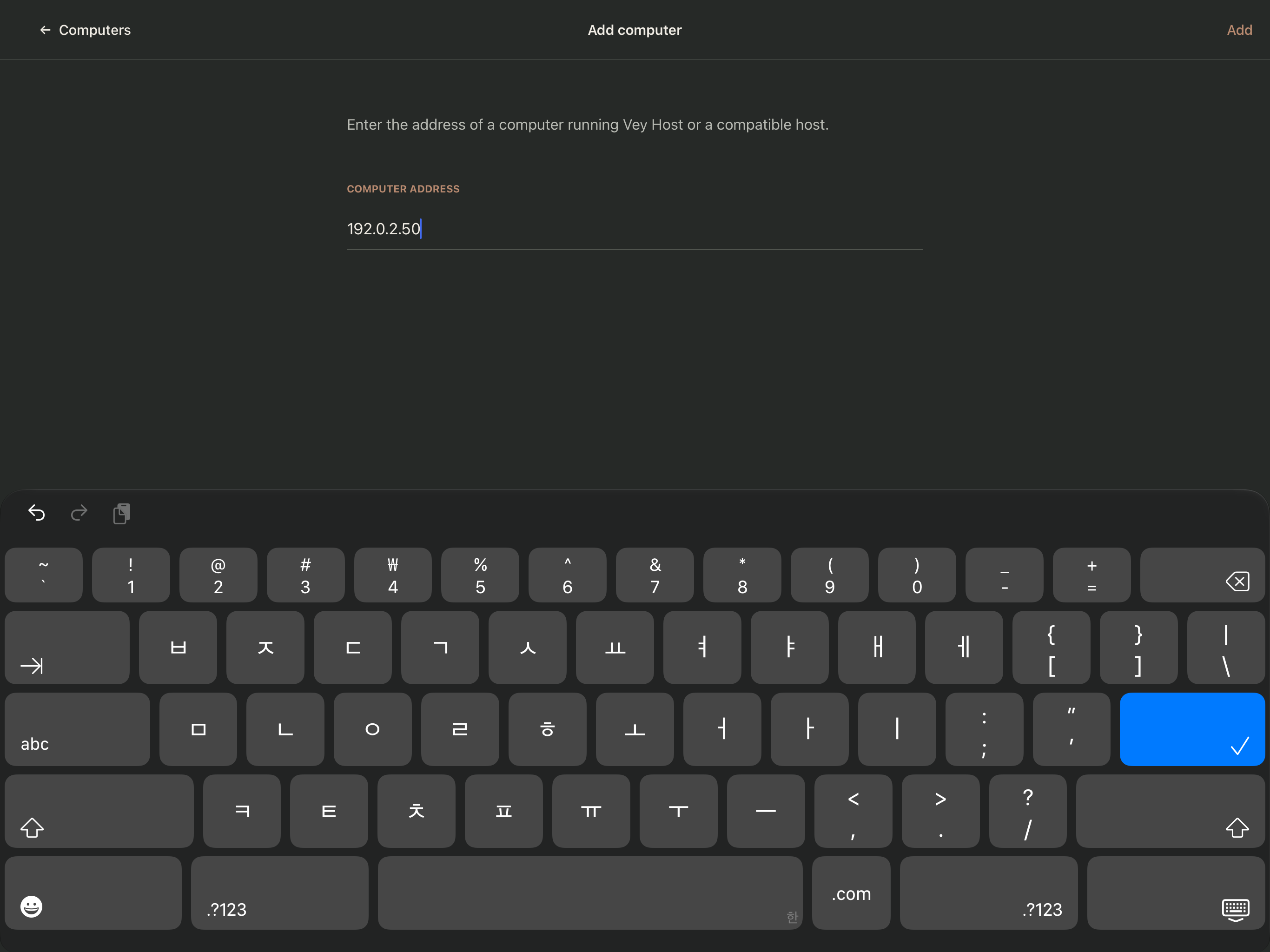
In Vey · Add computer → enter your PC’s address → Add. The address shown is an example.View full size Read the PIN in Vey.
Select the PC to show a four-digit pairing PIN. Keep this page open while you return to the PC. Use the PIN shown on your device; 1234 in this guide is only an example.
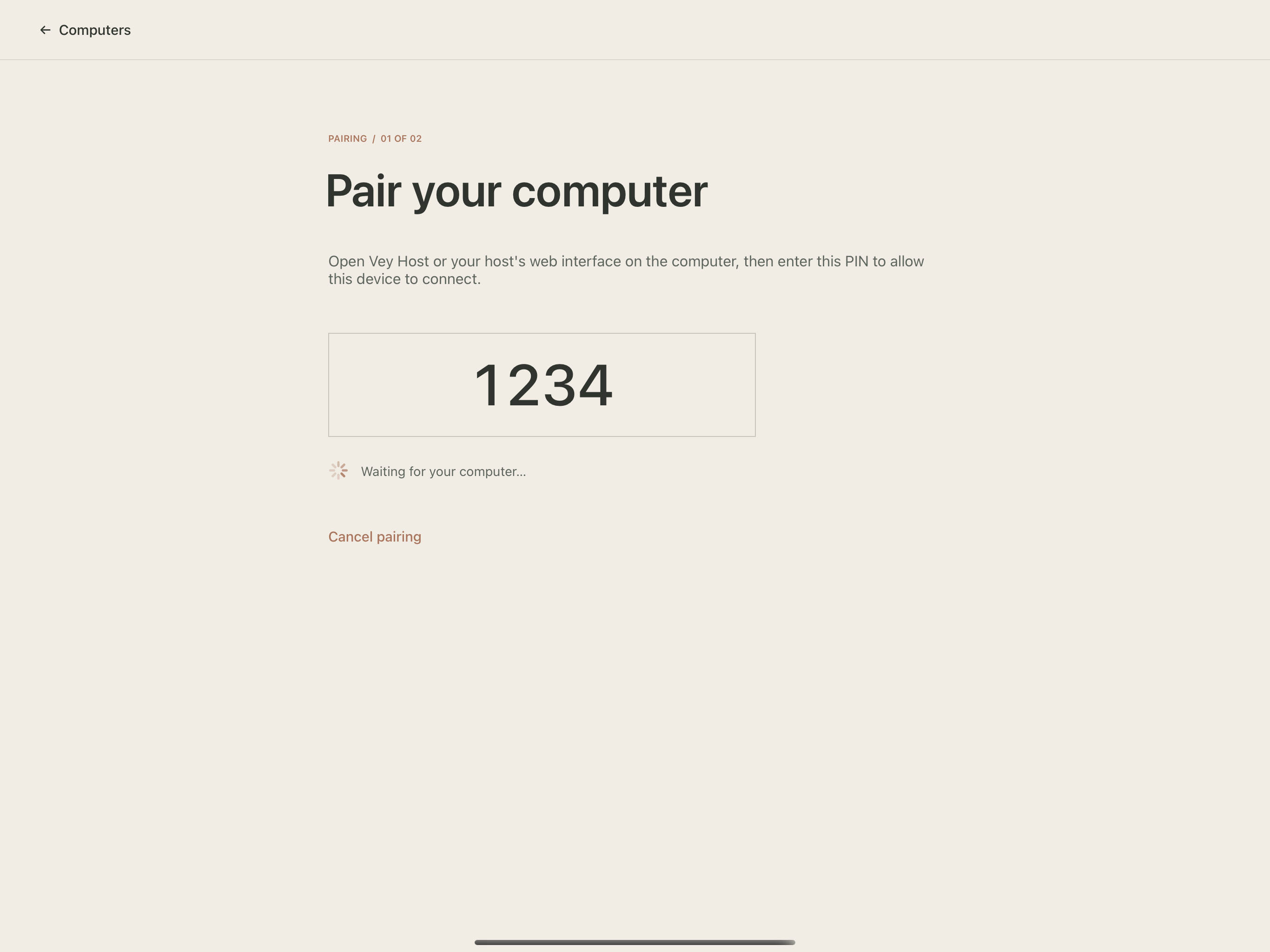
In Vey · Keep the PIN page open. Use your own four-digit code, not the example 1234.View full size Approve your device on the PC.
In Host, choose the request from your iPhone or iPad, enter the PIN currently shown in Vey, and select Approve device. The device name and address belong to the client requesting access.
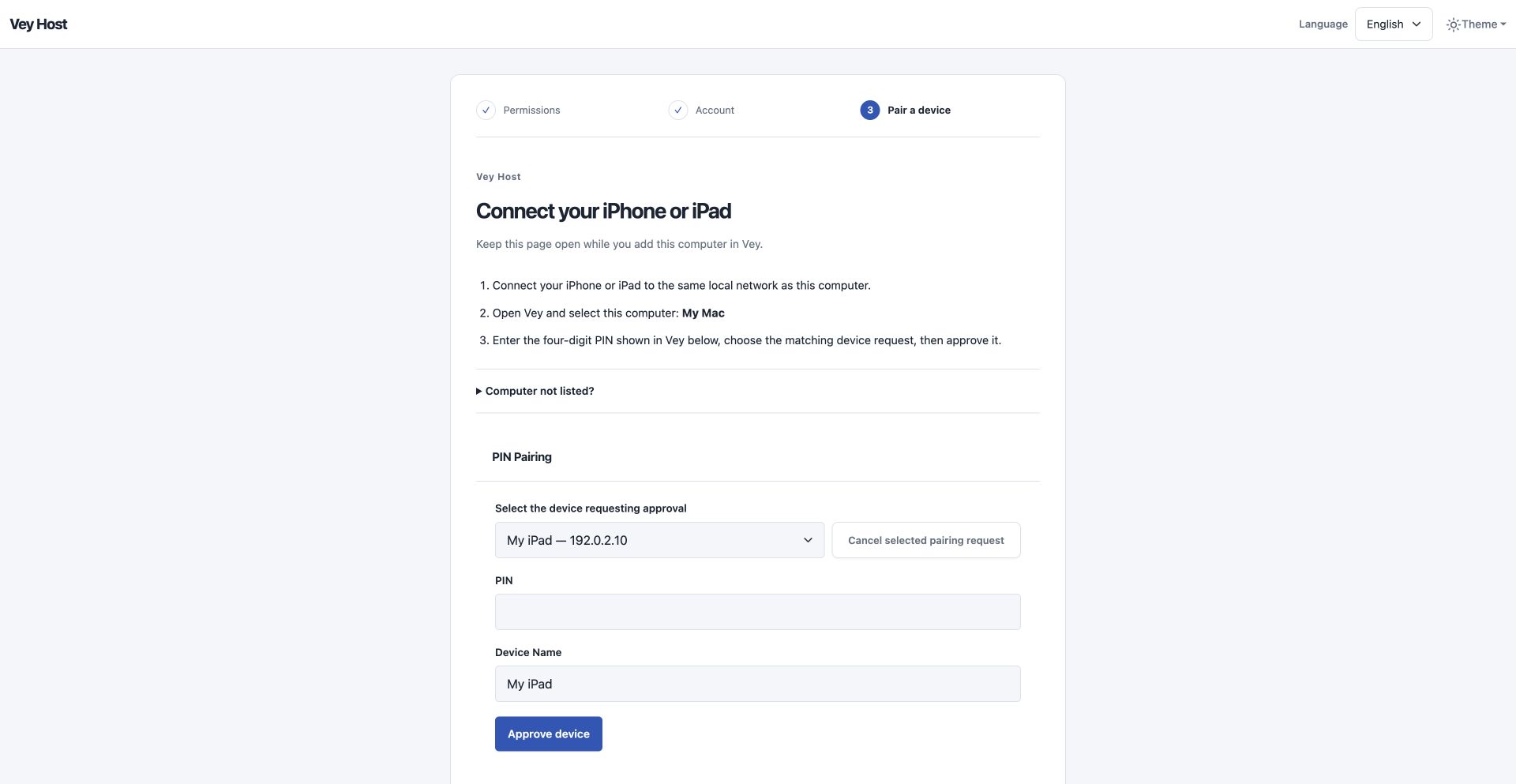
On the PC · Choose your device request, enter Vey’s PIN, then Approve device.View full size Open Desktop.
After pairing succeeds, open the PC’s Desktop entry. Check picture, pointer movement, clicking, and keyboard input before trying a connection from another network.
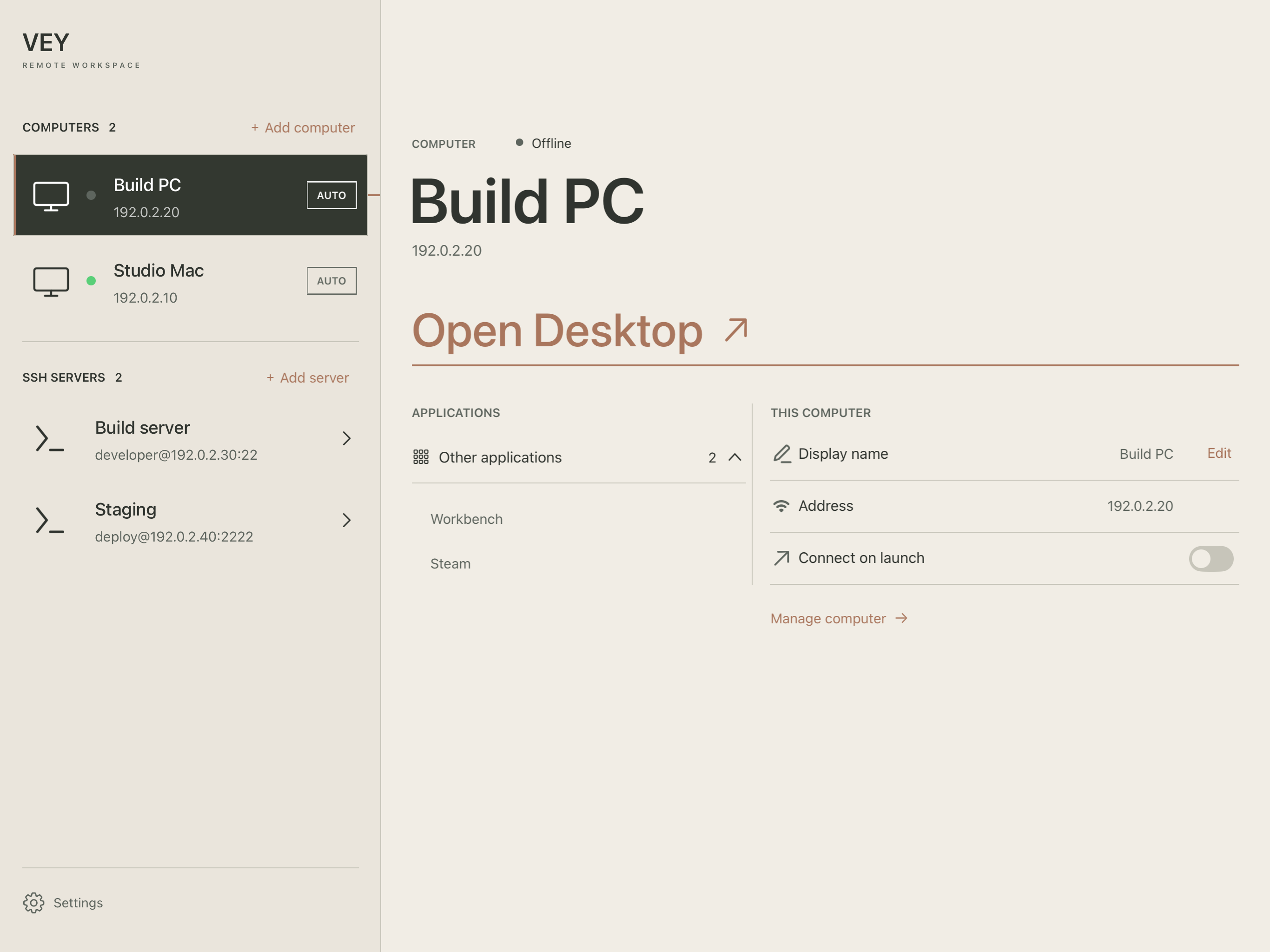
In Vey · Choose an available PC from the list, then Open Desktop.View full size 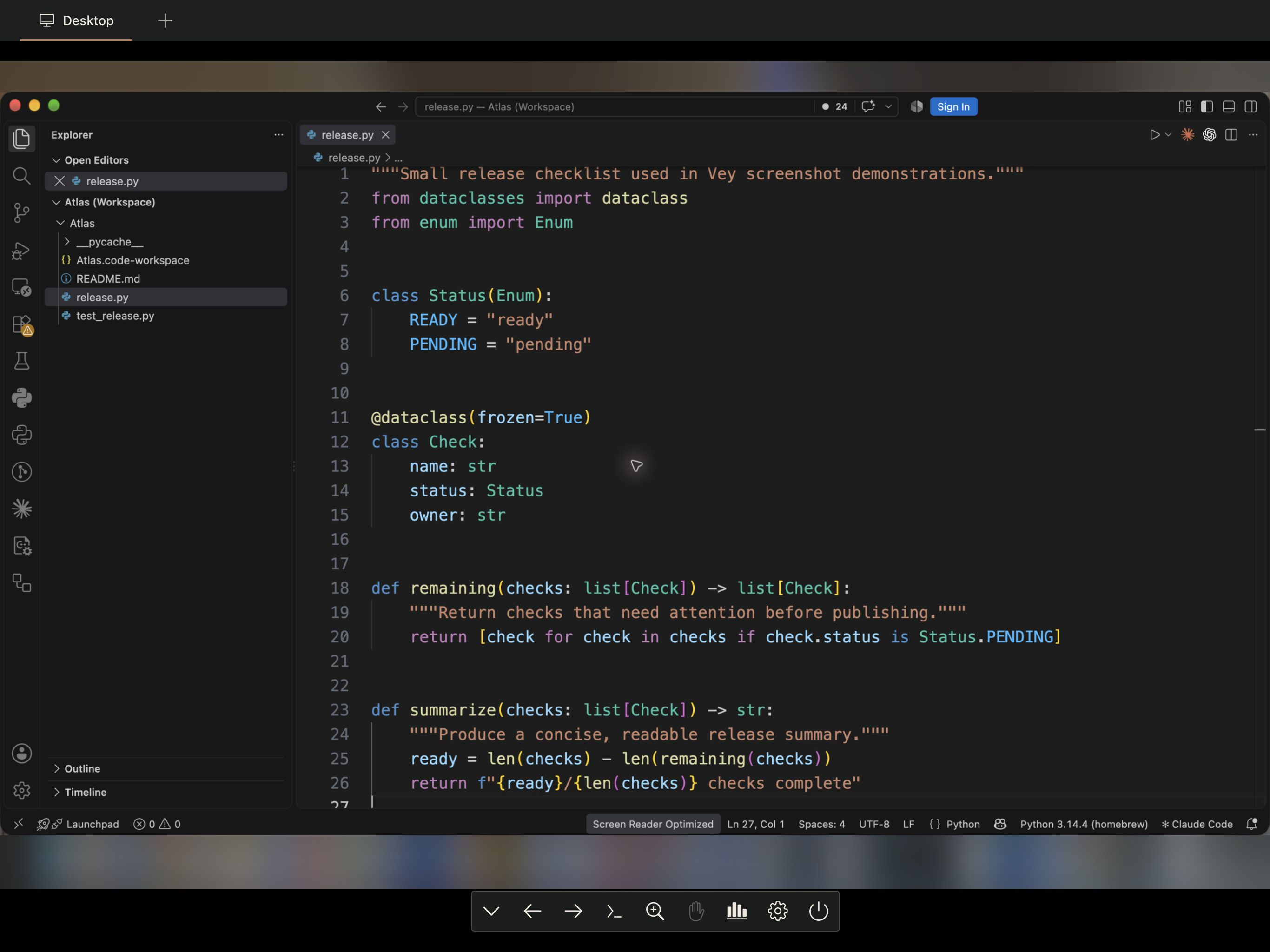
Real iPad session · The streamed desktop and toolbar. The host menu bar and Dock have privacy blur.View full size
Input & monitors
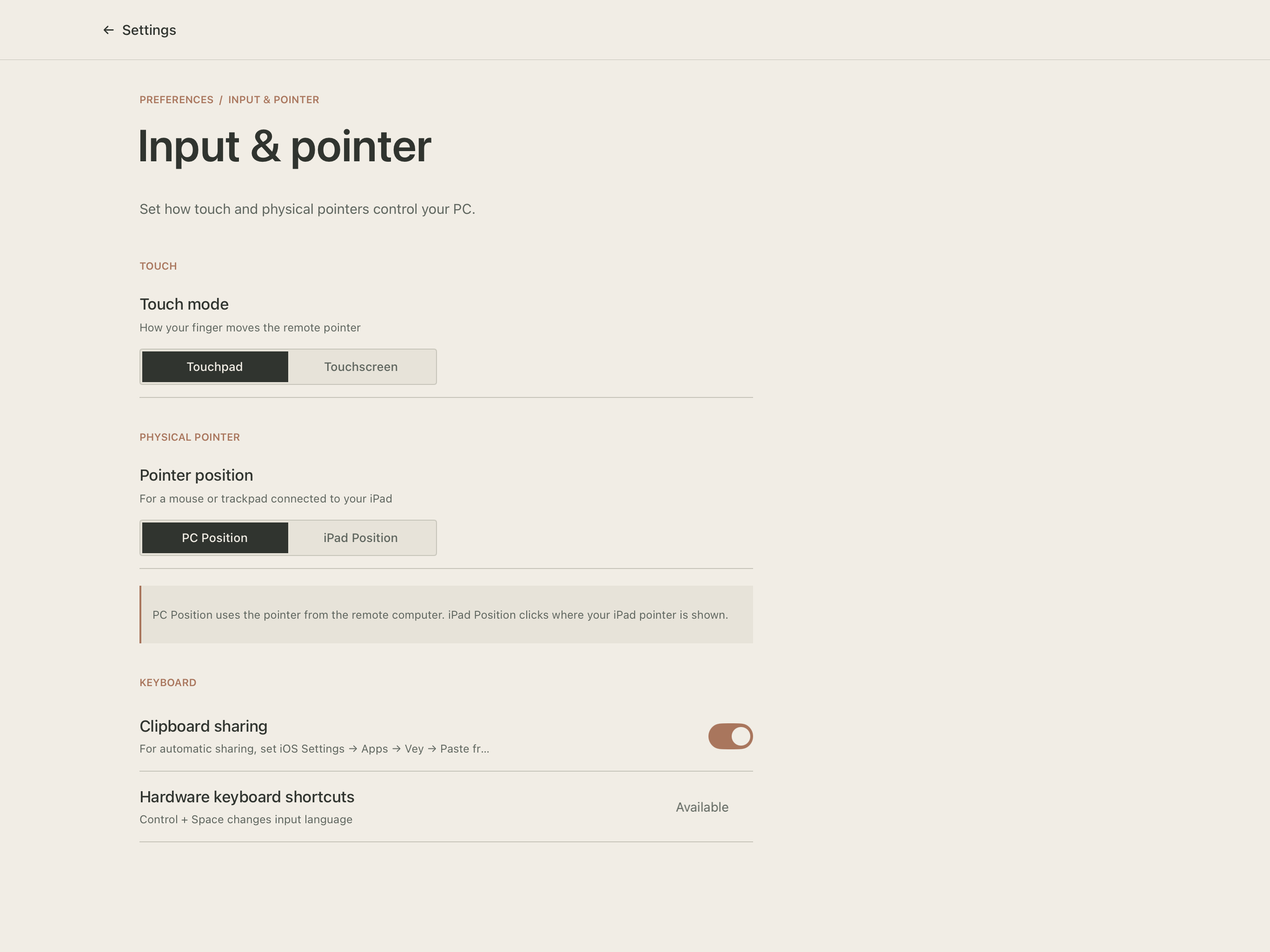
On mobile, Input & pointer separates finger input from a connected mouse or trackpad. Android labels the finger choices Trackpad / Touchscreen. Reconnect Desktop after changing the input mode.
- Touch Mode
- Touchpad moves the remote pointer by the distance your finger travels; tap to click. Touchscreen sends the touch to the place you press in the picture.
- Physical Pointer Mode
- PC Position uses remote pointer motion. iPad Position / Device Position maps the device pointer to the video. Follow pointer needs Device Position and zoom above Fit. Hiding the host cursor depends on the host’s capabilities.
- Toolbar & monitors
- Drag the toolbar by its handle to an edge of the screen. Use its arrows to change monitors on a supported host. If your host uses custom switching keys, configure them per PC with the gear button. One monitor is shown at a time.
- Keyboard & ending a session
- For a Mac with the matching input-source shortcut enabled, use Control + Space. Optional Caps Lock translation is Off by default; when Off, the original press and release are forwarded for the host to handle. When On, Vey sends Control + Space. The toolbar’s disconnect action asks for confirmation.
Keyboard shortcuts
| Action | Mac keyboard | Windows keyboard |
|---|---|---|
| Previous monitor | Mac keyboardCtrl + Command + ← | Windows keyboardCtrl + Win + ← |
| Next monitor | Mac keyboardCtrl + Command + → | Windows keyboardCtrl + Win + → |
| Cycle zoom navigation | Mac keyboardCtrl + Option + M | Windows keyboardCtrl + Alt + M |
Record your own keys
In the mobile app, open Settings → Input & pointer → Keyboard shortcuts and choose an action. Press the real keys: Currently pressed updates live, and Shortcut to save keeps the combination after release. Save applies it; Cancel keeps the old binding. Use default is only applied after Save. Duplicate combinations and plain typing keys are rejected; F1–F12 can be used alone. Command is Win, and Option is Alt. Some system shortcuts and Fn are reserved by the device.
Zoom, move, and follow
Pinch to enlarge the desktop, then use the hand button or the zoom shortcut to cycle Scroll PC → Move view → Follow pointer. Scroll PC scrolls the remote app; Move view pans the enlarged picture with two fingers or trackpad scrolling. Follow pointer requires iPad Position (Device Position in the Android development app). It anchors the pointer at the center of the current view without jumping. The view follows while space remains; the pointer leaves the center at desktop edges. The magnifier returns to Fit.
Client shortcuts run the same actions as the toolbar. Host monitor commands are separate: use the per-PC monitor settings to record the keys sent to that host, or Use default for automatic behavior. Vey Host switches to an adjacent screen; ordinary Sunshine asks for a monitor number and sends Control + Alt + Shift + F1–F12. Changing a client shortcut does not rewrite the host command.
- Compact stream statistics
- Use the chart button to show or hide the one-line readout; tap the readout for detail. FPS measures received video, RTT is the network round trip, and frame loss is a percentage of expected frames. RTT is not total mouse-to-screen delay. Unavailable or stale values are not displayed as zero.
- Plain-text clipboard
- Enable clipboard sharing only when you want it, and allow the OS paste prompt if shown. A compatible host is required. Passwords and recovery codes should not be passed through automatic clipboard sharing.
SSH
Mobile Vey and Vey Desktop both provide SSH, independently of PC pairing. Host is not needed for a normal SSH server.
Use Add server, then enter a name, server address, port, and username. Use the port configured on your server; 22 is the usual SSH default.
On mobile, choose Password or SSH key. Copy SSH key exports the app-generated public key for your server’s ~/.ssh/authorized_keys. Android can also import a private key. On Desktop, choose a local key file; passwords and encrypted-key passphrases are entered in the OpenSSH terminal and are not saved.
On the first connection, compare the server-key fingerprint with a trusted source before accepting. If a saved server key changes, check the change with the server owner before trusting it again.
Desktop remains connected while a mobile SSH tab is in front. Vey Desktop can retain multiple PC and SSH sessions. This describes switching within Vey, not unlimited mobile background execution. On Windows, Desktop SSH needs the optional OpenSSH Client feature.
Away from your desk
Remote access needs a reachable route to the PC. Use your existing VPN or the optional mobile Tailscale feature where configured; a successful account login alone does not prove Host is reachable.
- Connecting over VPN
- Connect the client device to your VPN first. The VPN must route to the host’s network and allow its streaming traffic. Add the host’s reachable address manually if discovery cannot cross the VPN; seeing “VPN connected” alone does not confirm access to that PC.
- Startup & reconnecting
- Select your usual PC for automatic Desktop connection. An interrupted connection can retry up to three times, with a Cancel action while it tries. If a new pairing PIN is required, select the PC and pair again.
- Switching to another app
- iOS and Android can suspend background apps. Session grace and reconnect settings can help, but indefinite background streaming is not guaranteed. Keeping Desktop alive while viewing SSH within the app is a separate behavior.
- Optional Google Drive sync
- Connect your own Google account with a separate sync passphrase. Mobile apps can merge encrypted PC/SSH lists and shared settings. SSH passwords and private keys are excluded; PC pairing remains per device. Save a recovery file privately. Disconnecting leaves the cloud vault in place and does not revoke existing Host access. Production OAuth setup is still being prepared.
- Optional Tailscale access
- This mobile feature is off by default. Sign in only if you use Tailscale, and make sure the host is in a network your tailnet allows you to reach. Tailnet routes, permissions and host firewall rules still apply. Production provider setup and live-device testing remain in progress; local connections do not require it.
Troubleshooting
Check the specific part that stopped working before changing several settings at once.
My PC does not appear.
Check that the PC is awake and Host is running. Start on the same network and allow local network access on iPhone or iPad. Try the PC’s address manually. Over VPN, check routing and host firewall rules; automatic discovery may not reach another subnet.
Pairing fails or times out.
Cancel the old attempt, select the PC again, and use the new PIN shown by Vey. Enter it in the Host running on that same PC. A management login is not a pairing PIN; a successful VPN connection is not proof that Host is reachable.
I can see the screen but cannot click or type.
On a Mac host, check Accessibility permission for the installed Host app. Screen recording and input access are separate permissions. After changing permissions or replacing the app, restart Host and reconnect.
The cursor disappears, doubles, or stops at an edge.
Check Physical Pointer Mode under Input & pointer, then reconnect to test it. Compare touch input with your physical mouse or trackpad. Record which mode and host version show the problem; cursor capture and hiding can differ between hosts.
The picture or pointer feels choppy.
Open stream statistics and move a window continuously while checking incoming FPS, network delay, dropped frames, and decoding time. Lower bitrate if the network is dropping frames; a lower bitrate alone will not fix slow host capture or decoding. Try a lower stream resolution to separate those limits.
About Vey
Vey is for remote office and development work. The iOS/iPadOS app is based on Moonlight iOS, Android on Moonlight Android, Desktop on Moonlight Qt, and Host on Sunshine. Original notices are retained, and corresponding source information will accompany releases.
Connections are stored locally. Mobile secrets use iOS Keychain or device-bound Android encryption. Desktop SSH uses system OpenSSH and local key-file paths without saving passwords. Optional Drive sync transfers an encrypted connection/settings vault, excluding SSH passwords and private keys. Product-specific privacy notices are still being finalized.
Email support using Contact support below. Include product/version, client and Host OS, and the exact error. Do not send passwords, PINs, private keys or recovery codes. Public GitHub Issues will be linked after the repositories open.